• How To?
  • Tips ‘n Tricks
  • WordPress
  • Snippets
  • Software
    • Browsers
    • Downloads
  • Web
  • Tools
    • Character Counter
    • chmod Calculator
    • Entities Encoder
    • Live HTML Editor
    • My IP
  • Contact
Twitter Facebook Google+ RSS
You are here: SumTips » Linux » Open Applications Menu with Windows Key on Ubuntu

Open Applications Menu with Windows Key on Ubuntu

Posted on March 15, 2011 by Renji | Short URL: http://sumtips.com/?p=3739
Ubuntu Applications Menu

If you are a new Ubuntu user like me, then you may be missing the feature of opening the Applications menu with Windows Key on Ubuntu, like you could on Windows. However there’s a little tweak available that gives you this functionality.

All you got to do is, open terminal window and enter the following command in it:

gconftool-2 --set /apps/metacity/global_keybindings/panel_main_menu --type string "Super_L"

Now if you press the ‘left’ Windows key, it will open the applications menu, however, pressing it again won’t close it. That’s a limitation, but you could use the ‘Esc‘ key for that. Another limitation of this tweak is that both Windows key won’t open the Applications menu.

So, if you wish to use the right Win key, simply replace Super_L with Super_R.

You can also set this key from configuration editor. To launch configuration editor, press Alt+F2 and type in ‘gconf-editor.’

Then navigate to : apps >metacity >global_keybindings and find ‘panel_main_menu’ in the right-side pane.
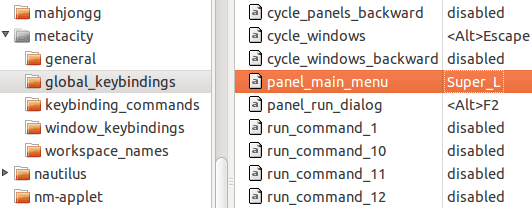
Edit the key and enter in ‘Super_L,’ and save it. You can use “Super_R‘ as well.


Tweet

Related posts:

  • Find Application's Command and Path in Ubuntu
  • Move Minimize, Maximize & Close Buttons to The Left in Ubuntu
  • 6 Useful Applications and Indicators for Ubuntu
  • 6 Useful Hacks to Enhance Windows Context Menu
  • Reorder Applications In Windows Taskbar With Taskix
Categories: Linux, Tips 'n Tricks | Tags: Linux, Tips 'n Tricks, Ubuntu
Set Different Favicons for Frontend, Backend and Login Page on WordPress
Easily Save and Restore Ubuntu Panels

  • Get Updates via Email

  • Recent Posts

    • CMS2CMS: Migrate Site from Drupal or Joomla to WordPress
    • WordPress: Add Preview Button in Distraction Free Writing
    • How to Activate or Deactivate Individual Jetpack Modules
    • Windows 8: Auto Update Defender with Windows Update Disabled
    • Automatically Start and Close Programs at Specific Time
    • How to Copy Code from Notepad++ with Syntax Highlighting
  • Random Posts

    • New Google Groups: Mashup of Gmail/Reader/Wave
    • Now Foursquare University Badges Unlockable at Campuses Everywhere
    • Windows: How to Copy Folder Structure without Copying Files
    • WordPress 3.1 Final Released
    • Google Plus Cover Creator, Cover Template Guides & Dimensions
    • 4 Sites to Send Long SMSs Free in India
  • Categories

    • Blogging
    • Games
    • Google
    • How To?
    • Linux
    • Microsoft
      • Windows
    • Miscellaneous
    • Phone
    • Snippets
      • AutoHotkey Snippets
      • CSS Snippets
      • htaccess Snippets
      • JavaScript Snippets
      • PowerShell Snippets
      • WordPress Snippets
    • Social
    • Software
      • Browsers
    • Tips 'n Tricks
    • Wallpapers
    • Web
© SumTips. Contact | Sitemap | Privacy Policy