If you are a Notepad++ user, you’d be knowing that the program doesn’t support multi-line search. When you try to paste in a couple of lines into the find field, only the first line is entered, rest is ignored. Thanks to a little plugin called ToolBucket, we can now find and replace multi-line text in Notepad++.
Installing ToolBucket
Download and extract zip file, and copy the NppToolBucket.dll file to your Notepad++\plugins folder.
You can also get this plugin from within the text-editor itself by going to Plugin Manager from Plugins > Plugin Manager > Show Plugin Manager. Under the Available tab, find and select ToolBucket, and click Install.
Using ToolBucket
Once installed, press Alt+Shift+F key combination to open Multi-line Find and Replace dialog.
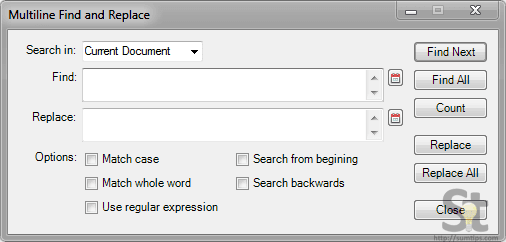
From here, you can search for text within a particular text selection, current document, or in all the open documents.
Find and Replace is not the only feature you get with ToolBucket. As the name suggests, there are other tools in the bucket. Other available tools are:
- Change indentation dialog
- Generate GUID
- Generate Lorem Ipsum
- Compute MD5 Hash and SHA1 Hash
- Base 64 encode and 64 decode
You can access these by clicking on Plugins > ToolBucket, in the menu.
While Notepad++ cannot find multi-line text by default, it surely can replace text in a single line with multi-line text using the Extended search mode. With Extended search mode enabled, you can search for tabs(\t), newline(\r\n), and a character by its value (\o, \x, \b, \d, and \\).
Example:
- Find:
line1 - Replace with:
line2\r\nline3\r\nline4
This would replace line1 with line2, line3, and line4, in three separate lines.
Remember to select Extended in the Replace dialog.
Delete all blank lines:
If you have blank lines in your code, you can remove them by performing this simple “find and replace”:
- Find:
\r\n\r - Replace with: [leave blank]
This is something I use a lot!
One thought on “Find and Replace Multiple Lines in Notepad++”
This is a fabulous addition for notepad ++. The only problem I noticed is that you can not search and replace files in a folder. So if you have 1000 files to open it makes it a little tricky.
“From here, you can search for text within a particular text selection, current document, or in all the open documents.”
It is a little restrictive in that sense but a great mod otherwise.